

cyfar
Introduction
So, you want to setup CapeV2 huh? Well I hope I can help. I’ve been trying to setup this thing for the past couple of years and failing every time. I was so sad, i followed the instructions but still it didn’t work.
Everything changed on July 8th 2025. I was able to make it work twice in a row, and this blog would be the 3rd 5th time.
I hope by reading this you get the same success.
What is CapeV2?
CapeV2 is a dynamic analysis tool that improves on Cuckoo and allows you to upload malware and make it run a la VirusTotal, Hybrid-Analysis, etc. Cape is the web gui + orchestrator that will take care of sending the payload and managing the VM state.
Context & Prerequisites
I’m deploying this on a bare metal Dell XPS 13 9530 laptop that I’m not really using, the machine itself is connected to my Wi-Fi. Nothing super fancy.
I use Ventoy on my USB sticks to boot via ISOs, as well as transfer files simultaneously and I suggest you start using it as well.
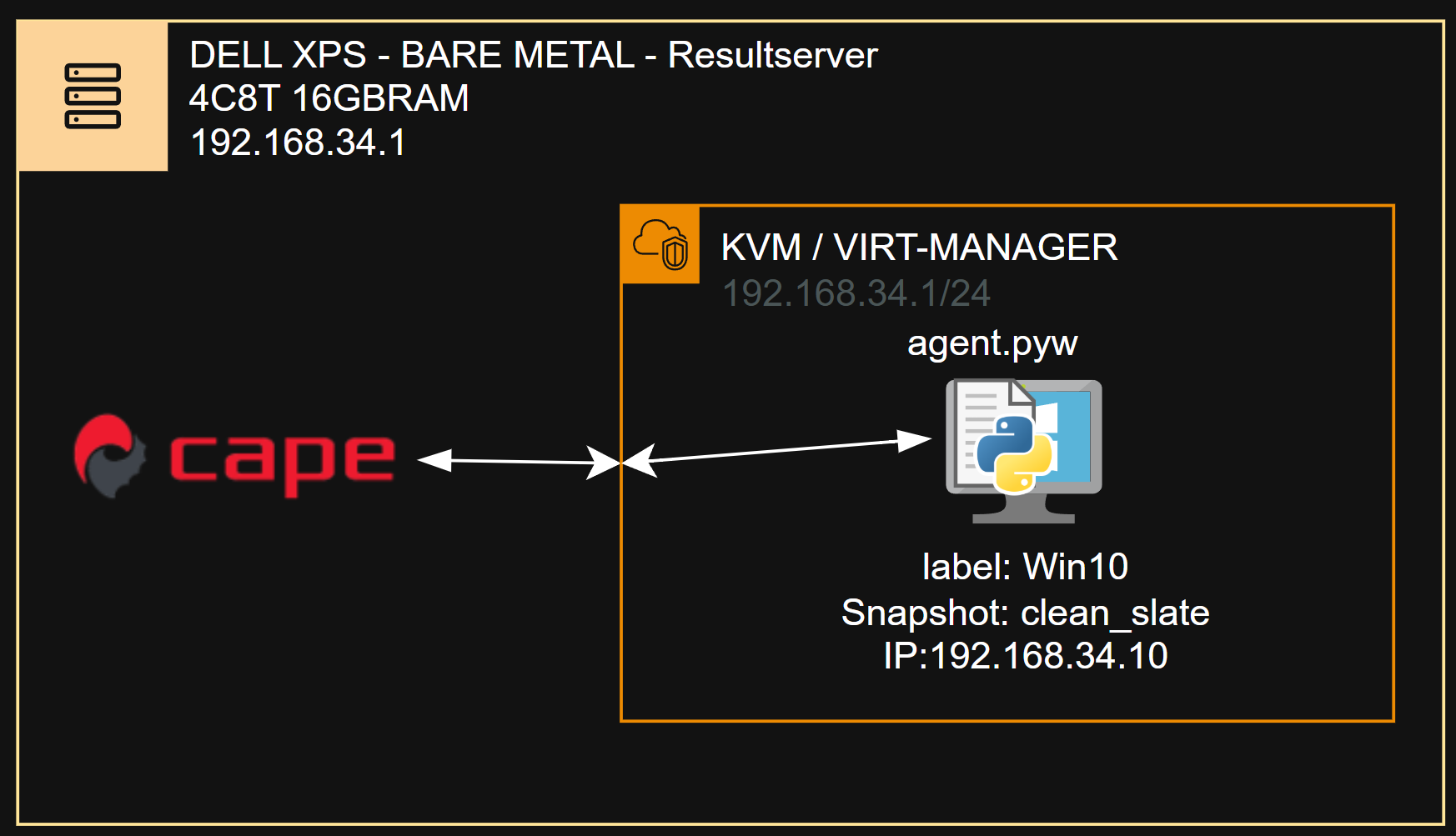
Here are the specs and diagram of my deployment.
Steps
Step 1: Setup your Host
This step is pretty straight forward. On my bare metal laptop, I set up a clean Ubuntu 24.04 Desktop with minimal software.
Check your BIOS.Make sure you don’t use cape as the user you install with, otherwise proceed with a regular installation (next, next, next, next)
Once your install is finished and you’re logged in, proceed to step 2.
Step 2: Setup the KVM
Let’s move on to setting the KVM up. we will be using libvirt (virt-manager).
On your Ubuntu 24.04 desktop machine, create a folder to hold the contents of what you’ll be pulling from git.

Once you have your folder, cd into it and you are ready to start.
Gathering Real Hardware Information
Lets go ahead and collect the data we need to input into the kvm script.
Technically, you could just use one of the entries mentioned here and skip the commands


For the sake of the tutorial, you will want to select the 4 letters found here:

I will be using DELL
Configure and Install KVM
Go ahead and pull the kvm-qemu.sh:

Edit the kvm file to your specified 4 letter code (mine is DELL)

Once you’ve done that, go ahead and run the installer WITH YOUR SYSTEM USER

It will take a moment.
Once it finishes, run the command below and reboot(could be redundant, but I’m a little superstitious.)

Once both scripts complete and your system is rebooted, go ahead and check for virt-manager in your ubuntu GUI and open it. If everything went well, you should see the following:

When running ip a, you should see virbr0 with the IP range of 192.168.122.1/24.
Step 3: Preliminary Guest VM setup
Good, now that virt-manager is confirmed working we will need to change the network address from 122.1 -> x.1.
X = whatever number you want which isn’t above 254 and isn’t below 1
- Go into the main manager view and go into Edit > preference in the top toolbar
- Enable XML editing and save.
- Go back to main manager view and right click on the QEMU/KVM connection and select details.

- Go into the Virtual Networks tab
- Stop the network
- go into xml tab
- change the network to anything other than whats in the brackets 192.168.[122].1
- ???
- Click apply , re-enable the adapter and exit out
- Profit.

Now, you create a regular vm windows10. You can use custom ISOs from repacked Win10s ’cause…. why not?
Me personally, I am using a custom repacked Win10 ISO.
I will not be covering how to install a Windows 10 VM in Virt-Manager.
Step 4: Install cape
lets go ahead and setup cape while your VM is installing.
In the capev2 folder you created in the beginning, pull the cape script and edit it:
Here is what my config looks like:

Start the setup with:
Once complete, make sure to install the optional dependencies
Go ahead and edit your kvm.conf and your cuckoo.conf to make sure everything matches up.
They are found here:
The name of the VM you created will be used in those configs and so will the snapshot.
Here is my configs as an example (ignore cape1),
- in the kvm.conf we define [win10] as a machine and within the [win10] machine config we see the label being the name of the machine in virt-manager,
- the snapshot label will use the snapshot named “clean_slate” in virt-manager.
- Note that you can use any name for the snapshots.
- the IP needs to match the Guest VM IP as well.
- virbr0 should be the default interface, so you may not need to change much.
KVM.conf
And for Cuckoo.conf , make sure the result server ip is set to the gateway (which is your host)
Once those edits are made, head into /opt/CAPEv2/agent/ and copy the agent onto a usb stick connected to your host.
Rename the agent.py to agent.pyw and redirect your usb into your VM.
Step 5: Final Guest VM Setup
We are almost finished.
Your GuestVM should be ready to use, so log into the vm and setup the below at minimum.
- keep it simple for now
- Once you get used to the process then start changing stuff.
- Make sure to install python3.6+ 32BIT
- I used python 3.11.9 with the installer.
- Make sure to disable the firewall or add a allow all rule inbound.
- Set a static IP from within the network settings of windows.
Once the above is done,
- go ahead and redirect your USB key if you haven’t done so to the vm.
- copy the agent.pyw to a random folder
- rename the agent to anything that isnt cybersecurity related
- create a basic task that runs everytime you log on
- Point it to the agent you renamed, save it and check the box to open the properties
- Make sure your task has “run with highest privileges” checked.

Save and then proceed to run it.
From your HOST now, you should be able to curl the address of the VM on port 8000 and receive this.

If you do not receive this, then there’s an issue with the connection and you most probably have a firewall blocking.
In your GUEST, try and ping your host on the result server IP. You should be able to.

Once everything seems to be working, create a snapshot called “clean_slate” or whatever you set in your kvm.conf as snapshot.
I have multiple snapshots and change it for different reasons.

Finale
Now would be a good time to restart the cape services and check if it comes up.
The services should be up.
The trickiest ones are Cape, and Cape-processor. One way to know that it works and is connected is when you restart cape, your VM will turn off if it was on.
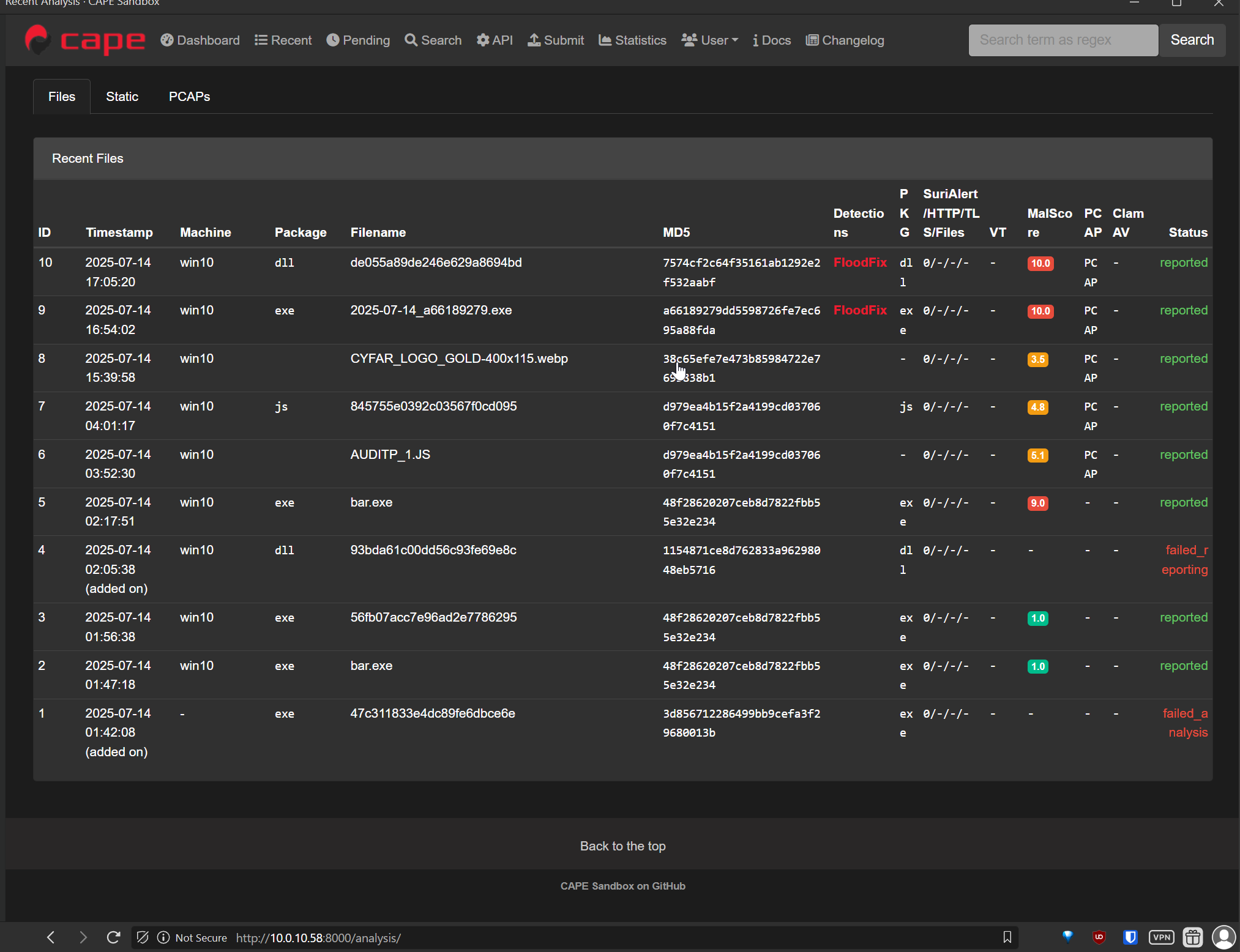
This is what it looks like when its working, some of the errors are normal and not major.
Extra configuration of CapeV2 is not within the scope of this “How-To”.
Conclusion
And that’s it. The steps above were the steps I’ve taken to get a working CapeV2.
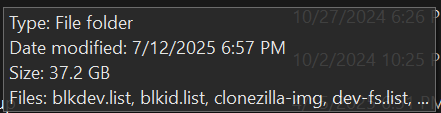
Also, once you get it up and running properly, it would be a good idea to back it all up (I use clonezilla live usb). Total size should be around 40~60gb compressed with a 120gb virtual disk. Here’s my backup size.
Anyways after a couple of tries you’ll be a pro!